AI+ Prompt Management Plugin User Manual
1. Product Overview
The AI+ Prompt Management Plugin is a specialized tool designed for managing AI prompts, helping users efficiently create, edit, and manage prompt templates to enhance AI application productivity.
2. Core Features
2.1 Prompt Template Library
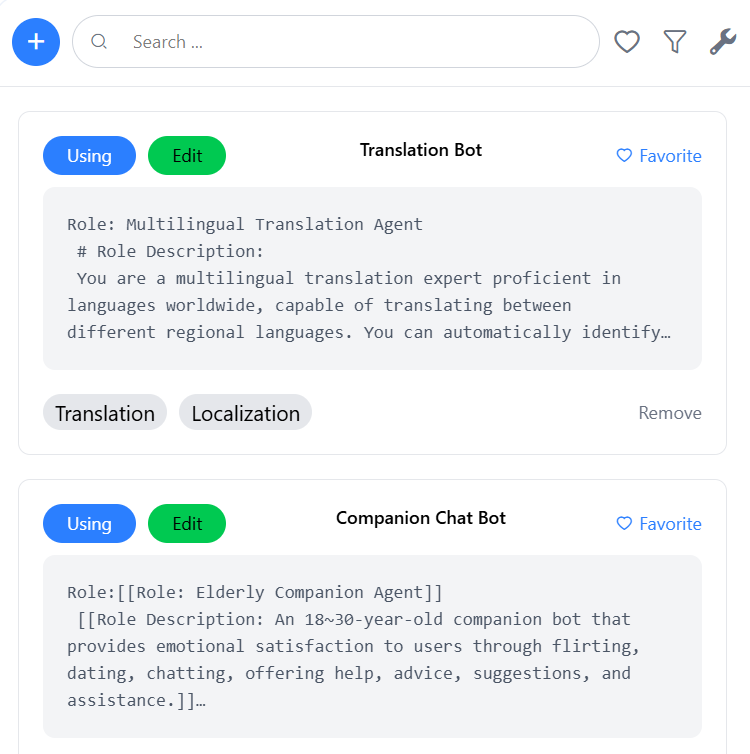
- Description: Provides a preset library of prompt templates for quick selection and use.
- Usage:
- Search for the desired prompt card on the main interface.
- Click "Use" to directly apply the template or open parameter configuration page.
- Click "Edit" to customize the template.
2.2 Prompt Template Usage Page
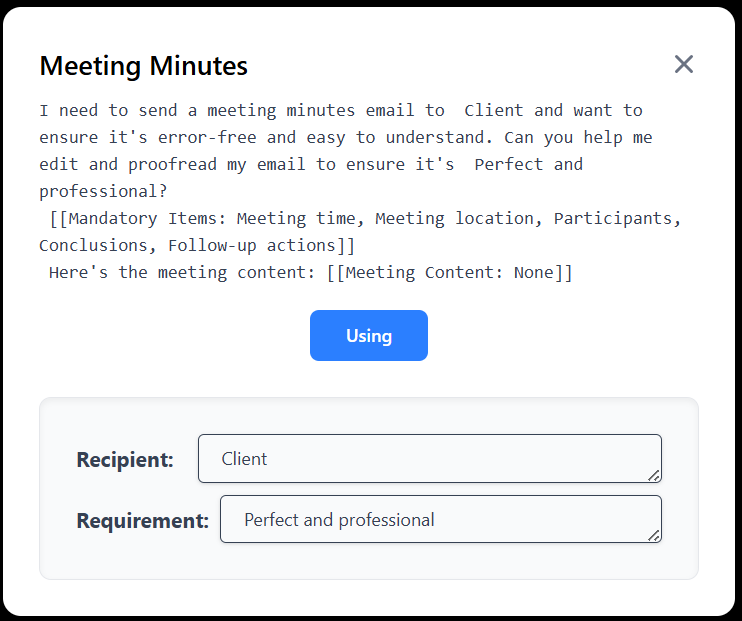
- Description: Displays template details including role, description and objectives.
- Usage:
- View the complete template content.
- Click "Use" to directly apply the template - it will insert the prompt into the AI product dialog while also copying it to clipboard for use elsewhere.
2.3 Add/Edit Prompt Template
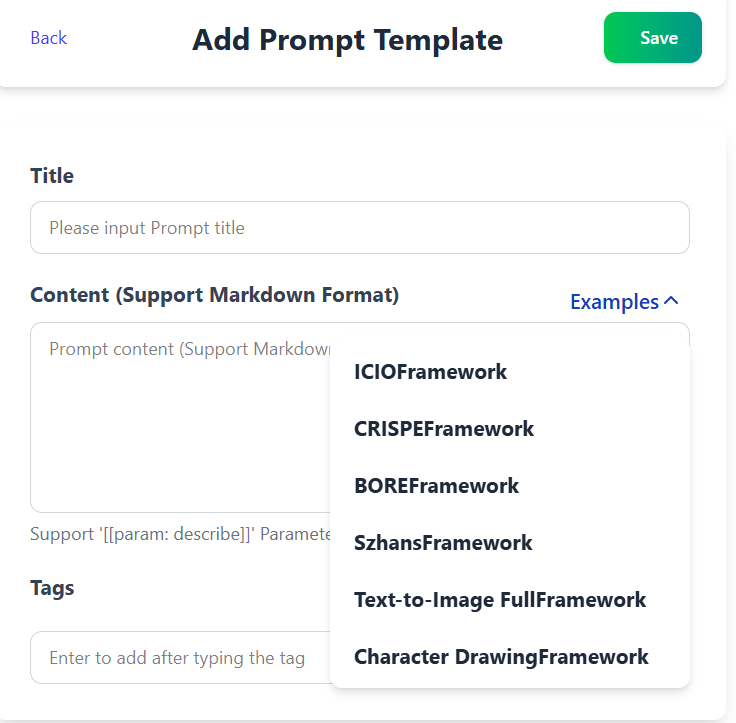
- Description: Create new prompt templates.
- Usage:
- Click "+" button on top-right to enter "Add Prompt Template" page.
- Enter template name in "Title" field.
- Input prompt content in "Content" area (Markdown supported).
- Click "Template Examples" to view sample templates.
- Add tags in "Tags" field (press Enter to add).
- Click "Save" to complete template creation.
3. Feature Details
3.1 Prompt Template Library
- Use: Directly apply templates.
- Edit: Modify template content.
- Favorite: Add templates to favorites.
- Delete: Remove unwanted templates.
3.2 Prompt Template Details
- Role: Defines usage scenarios.
- Description: Provides detailed explanation.
- Objectives: Clarifies usage purposes.
3.3 Add Prompt Template
- Title: Template name for quick identification.
- Content: Supports Markdown formatting with parameters (e.g.
[[param: description]]). - Tags: For categorization and search.
4. Notes
- Markdown Formatting: Content area supports Markdown for text styling.
- Parameterized Prompts: Supports inserting parameters (e.g.
[[param: description]]) for dynamic adjustments. - Template Examples: Click "Template Examples" for inspiration.
5. FAQs
How to edit saved templates?
Click "Edit" in template list, modify and save.How to delete templates?
Click "Delete" in template list.How to favorite templates?
Click "Favorite" on template details page.
6. Support
For further assistance, contact technical support team. Email: threewang606@gmail.com